

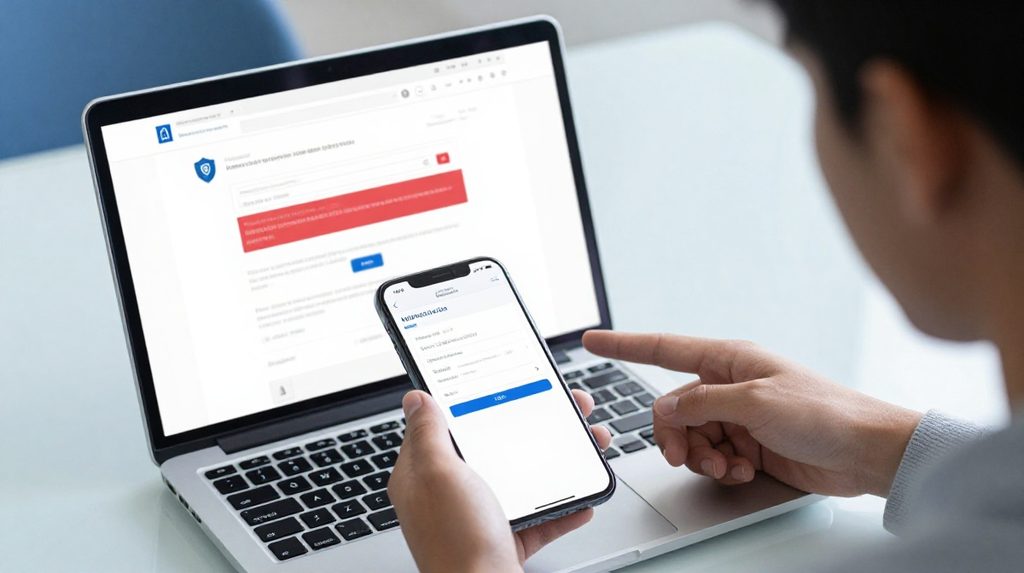
You just had a problem with a payment, an order, or an app. The support agent says Can you please send a screenshot? You take a quick snap and forward it without a second thought. But that image might show a lot more than the error you wanted to report.
Many users in India share screenshots in a hurry, not realising that the same screen also captures bank notifications, UPI IDs, partial OTPs, or a bank balance sitting quietly in the background. This happens more often than most people think, and the results can range from mild embarrassment to actual financial loss.
Here is what you should know before you send your next screenshot to any customer support team.
Why Support Teams Ask for a Screenshot
Customer support agents cannot see your device from their end. When you describe a problem in words, details can get missed or misunderstood. A screenshot removes that confusion by showing the agent exactly what you are seeing, down to the error code, the screen layout, and the step where something went wrong.
For platforms that involve payments or account activity, a screenshot also serves as the first piece of evidence for your complaint. That is why banks, e-commerce apps, and online platforms all ask for them routinely.
What Sensitive Information a Screenshot Can Accidentally Show
The danger is rarely the error itself. It is everything else in the frame.
A standard phone screen at any given moment might show your network provider’s name in the status bar, WhatsApp or bank SMS notifications sliding in from the top, the amount in your PhonePe or Google Pay wallet, your UPI ID, or an OTP that arrived just seconds before you took the screenshot.
In India, the risk is particularly high because most people handle everything on one phone. Your banking app, your UPI wallet, your shopping account, and your personal chats all live on the same screen. One carelessly taken screenshot can bring all of them into the same image.
What to Hide Before Sending a Screenshot to Support
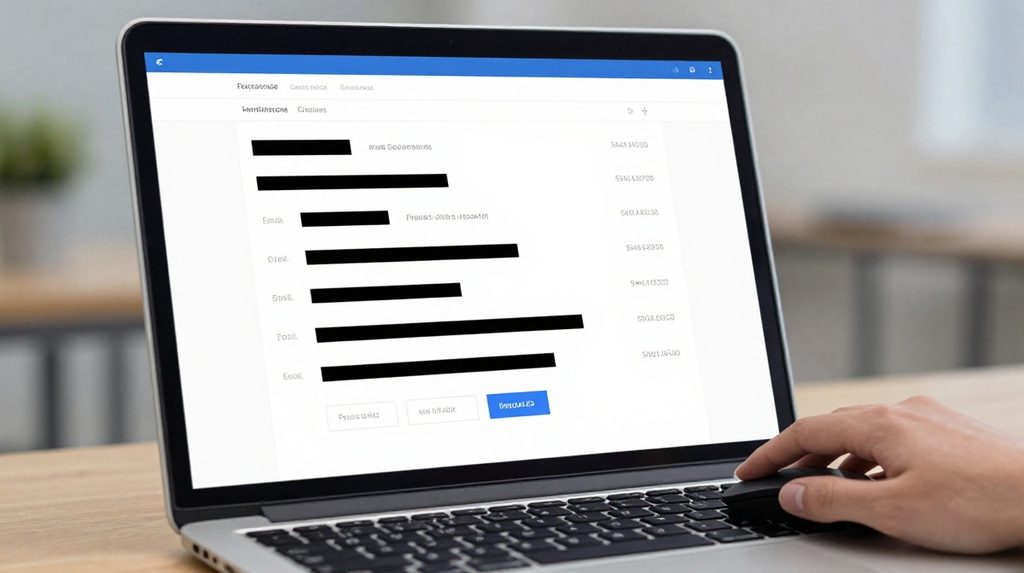
Before forwarding any image, go through this quick check. The list below covers what should never be visible in a screenshot you share with any support team, official or otherwise.
- Your UPI PIN the four or six-digit number you enter to approve a payment
- Any OTP sent by your bank or app
- Your full bank account number or IFSC code
- Your card’s CVV number
- Your Aadhaar card number or PAN card number
- Your net banking password or login credentials
- Your full mobile number, unless the support team has specifically asked for it
Use this table as a quick check before you hit send:
| What Is Visible in the Screenshot | Safe to Share? |
|---|---|
| Error message or app crash screen | Yes |
| Transaction reference or order ID | Yes |
| Your name as shown in the app | Generally yes |
| UPI PIN or OTP | Never |
| Full bank account number | No |
| Aadhaar or PAN number | No |
| Bank balance visible in the background | No |
| Another person’s chat or contact details | No |
To hide sensitive areas, use the crop tool or markup feature on your phone. On Android, Google Photos or your phone’s built-in editor lets you draw a black box over anything you want to cover. On iPhone, the Markup option inside Photos does the same job. After editing, zoom in and check every corner of the image before sending, including the top status bar, which sometimes shows your phone number inside certain apps.
How to Safely Share Screenshots With Any Customer Support Team
The channel you use matters just as much as what is in the image.
Always send screenshots through the official support chat, email form, or ticket system of the platform. Do not send images to any WhatsApp number that contacted you first, or to numbers found through a general internet search. Fake customer care numbers are common in India, and sharing a screenshot of your payment screen with the wrong person is one of the most reported ways that fraud begins.
If a platform offers an automated option like the lotus365 bot for support queries, access it only through the official website or app, never through a link someone sent you in a group chat or private message.
A useful screenshot for a support team should also show the right things. Include the full screen rather than a cropped section of the error. Keep the app name or URL bar visible if possible, so the agent can identify exactly which page you are on. Make sure the error message or problem is readable and not blurry.
Using Screenshots as Proof of a Problem
Sometimes a screenshot is not just about getting help. It is documentation you may need later.
If you are raising a complaint about a missed refund, a wrong charge, or a disputed transaction, your screenshot can work as formal evidence. Under the Information Technology Act, 2000, electronic records including screenshots can be accepted as secondary evidence in consumer disputes and cyber complaints in India. To make them hold up, keep the full screen with the app name and timestamp visible. If you are verifying something like a lotus365 win result or a payment confirmation, include the transaction reference number and timestamp in the frame.
Store complaint-related screenshots in a dedicated folder on your phone or in cloud storage. Keep them dated and clearly named so you can find them quickly if a dispute goes further.
Your Rights When You Share Data With a Platform
When you send a screenshot to a company’s support team, you are handing over personal data. India’s Digital Personal Data Protection Act, 2023 DPDP Act, places a legal responsibility on companies to protect that data. Under this law, companies must use your data only for the specific purpose it was collected for, and they must secure it against misuse and breaches. Penalties for companies that fail to protect personal data can reach up to ₹250 crore under the Act, with the DPDP Rules notified in 2025 extending these obligations further.
That said, this law covers what companies do with your data after they receive it. What you choose to include in a screenshot before sending is entirely in your hands. No rule can undo a shared OTP or a leaked account number.
If you accidentally send a screenshot with sensitive information, contact the company’s support team immediately and ask for the image to be removed from their system. If financial details were exposed, call your bank’s customer care right away and consider blocking your card or UPI temporarily. Any suspected fraud can be reported at the National Cyber Crime Reporting Portal or by calling the cybercrime helpline at 1930.